
Better Presentations Start With Your Audience
Designing slides, spaces and delivery for clearer understanding
Contents
How we present information has a direct impact on who can follow it, engage with it, and feel included.
This guide supports more considerate ways of presenting. It focuses on helping ideas be shared more clearly and experienced more positively by a wider range of people.
It is intended as an open reference for anyone who wants to communicate with greater care and effectiveness.
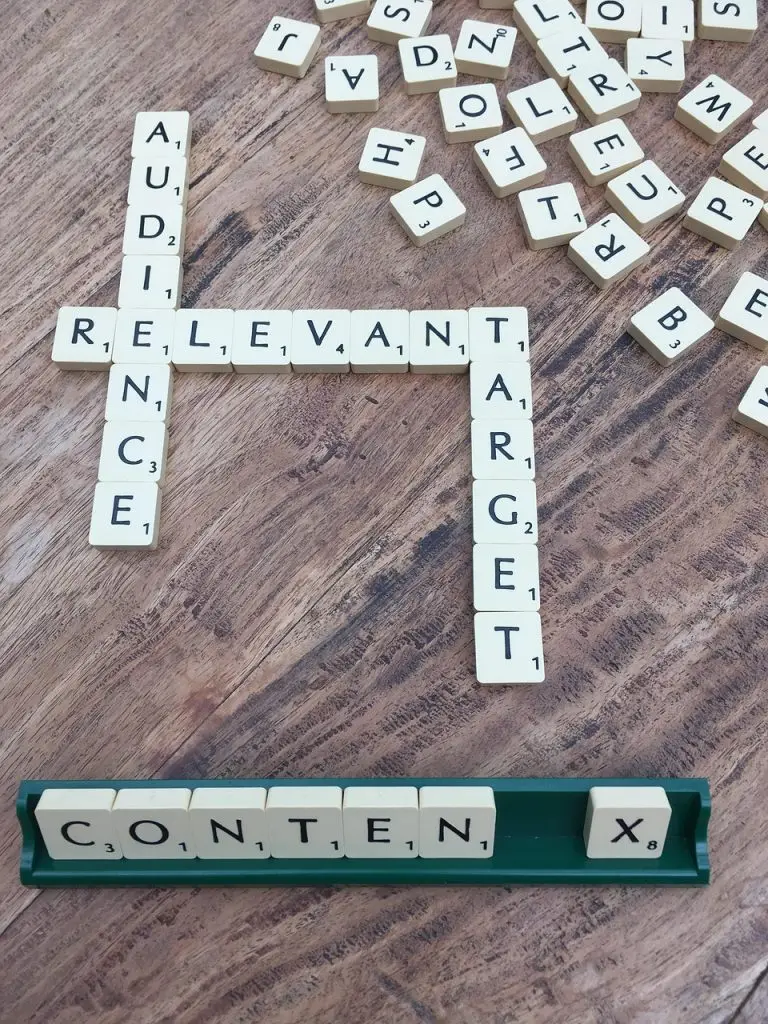
Thinking about the needs of your audience
Slide presentations are used everywhere, in businesses, public sector organisations and community groups to share ideas and shape decisions.
However polished the slides are or the tools used to create them, what ultimately determines success is how well the audience retains the message.
Taking time to consider who is in the room, how they process information, and the environment in which it is delivered, allows the presenter to make deliberate choices about structure, content, pace and delivery. Thereby creating clearer, more engaging slides that are easier to follow and improve message retention.
Clarity begins with the audience
Before creating any slides, stop and consider:
- What is the single most important message I want them to leave with?
- Who will be in the room, and what might they need to make it easier to understand?
- What adjustments can I make to improve understanding and message retention?
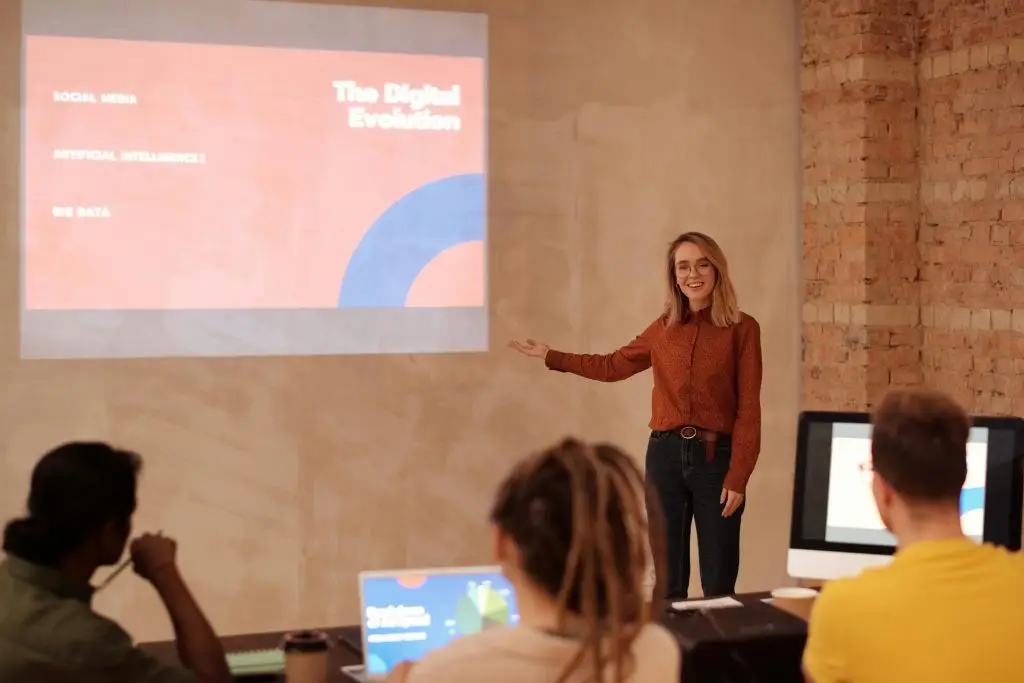
Create more engaging slides
The secret of great slides is that they should support the message, not deliver it in detail. When slides are text-heavy, attention wanes, and understanding drops.
Clear slides make it easier for audiences to stay focused on what you are saying, rather than trying to read ahead.
Focus each slide on one idea
The most effective slides communicate one clear point at a time. When multiple ideas compete on the same slide, retention falls, and key messages are diluted.
If a slide feels crowded, it may be carrying more than one idea; if so, consider separating it.
Simpler slides create space for explanation, emphasis and discussion.
This applies equally to text-based slides, image-led slides, data visuals and diagrams. Each slide should have a clear purpose.
Slides are support, not the script
Keep text minimal and purposeful. Avoid long paragraphs, dense bullet lists and technical jargon, unless the audience is genuinely familiar with it. Use short phrases to reinforce what you are saying, not to replace it.
White space improves readability and message retention.
Move the detail elsewhere
When detailed explanations, supporting data or background context are required, that information may be better placed elsewhere, allowing the audience to focus on the presenter and what they are saying. Consider providing the details on:
- On a webpage
- As a free downloadfrom a landing page
- In supporting documentation

Choosing fonts and colours
Design choices directly affect who can follow your presentation comfortably. Clear typography and thoughtful use of colour reduce strain, improve readability and help more people stay engaged.
Keep in mind:
- Around 4% of UK adults live with colour blindness
- Low colour contrast is difficult to read, especially in large rooms or on video calls
- Coloured text on coloured backgrounds often reduces legibility.
30pt bold for titles
26pt for Bullet points
24pt for body text
Choose fonts for clarity, not style
Using the right fonts improves clarity, readability and understanding:
- Use clean, sans-serif fonts
- Avoid using ALL CAPITOLS, especially in BOLD , as it reduces readability
- Choose font sizes that can be easily seen.
Contrast ratio (at least)
3:1 for large titles
4.5: for body text
Use colour to enhance, not decorate
Colour can add structure and emphasis, but it should never reduce clarity.
Aim for a strong contrast between text and background.
If placing text over an image, ensure contrast is even stronger so the message remains clear.
Use the free online colour contrast checkers to quickly test colour combinations.

Images
Images can clarify a message instantly. When used thoughtfully, they help audiences grasp ideas and remember them more easily.
Used poorly, they often add unnecessary noise.
Choose images wisely
Every image should have a purpose. Avoid images for decorative purposes. Images should support the point being made on that slide.
When in doubt, using fewer visuals well is more effective than using many without intention.
A great image will:
- Make the message clearer
- Simplify something complex.
- Help the audience visualise what I’m describing.
Stock images -v- bespoke
Stock images are fine as long as they are high-quality and relevant to the message.
Bespoke images convey a great professionalism and will be better aligned with your message.
One strong image works best, and keep ample space around it.

In-person and online environments
Presenting in-person
The layout of the room can really help the audience stay focused and attentive to the presenter and presentation.
If the monitor/screen is movable, place it so that it can be seen from every seat. It should be positioned so that it is well-lit from the front. Avoid bright windows behind or to the side, and turn off any bright room lighting directly above it.
When presenting, be mindful of lighting and where you stand. Your presence should guide attention, not compete with the screen.
- Stand where your face is well-lit and easily seen.
- Avoid blocking the monitor/screen.
- Move with intention rather than randomly pacing around.

Presenting online
Consider what the audience sees, particularly background and lighting.
A plain neutral background is always preferred, as a blurred option often degrades overall sound and audio quality for the audience.
Avoid sitting with bright lighting or windows behind. Have good lighting in front so that facial features are well-lit.

Delivery
Slides and room setup matter, but clarity is also shaped by how information is spoken and structured. Pace, articulation and intentional pauses all influence how easily audiences can follow and retain key points — whether in a room or online.
Speak for understanding, not speed
Clarity and pace are so important; if you feel that you are speaking slower than normal, you are likely at the right pace.

Nerves often cause people to speak more quickly than intended.
- Pause between key points to let the message land
- Speak with a calm pace and avoid rushing through complex content
- Slow slightly when introducing new or technical ideas
- Avoid reading the slides; use them as the prompts.

Online presentations introduce additional challenges.
- Slow the pace down more
- Speak clearly into a good-quality microphone
- Set the camera at eye level so that your complete face can be seen.

Live captions and microphones
Enabling live captions is one of the simplest ways to improve presentation clarity for in-person and online presentations. When supported by a quality microphone, captions reinforce spoken content and reduce the risk of missed information.
Captions benefit many people:
- Audiences with hearing / cognitive impairments
- Remote participants
- Participants whose language is a second language
- Aids complex explanations
- All those who benefit from reading and listening simultaneously.

Why microphone quality matters
Built-in device microphones vary in quality and often struggle in larger rooms or echo-prone spaces.
The goal is not studio production, but clear, intelligible speech.
A good quality microphone will:
- Increase caption accuracy
- Reduce listener fatigue
- Provides more consistent sound when moving around or online.
Enabling live captions
Live captions are available when the PC/device is connected to the internet, and the presentation has been created in either Microsoft PowerPoint, Google Slides, or Canva Pro.
Other platforms may well add captions sometime in the future.
Microsoft PowerPoint
- Select the Slide Show tab.
- Check the ‘Always use subtitles’ checkbox (right-hand side of the tab).
- Present as normal.
Google Slides
- Start the presentation as normal.
- Hover over the bottom of the screen to see the controls tab.
- Select ‘CC Captions’.
Canva Pro
- In the User Account page, select Settings.
- Switch the ‘Captions’ ON.
- Present as normal.